
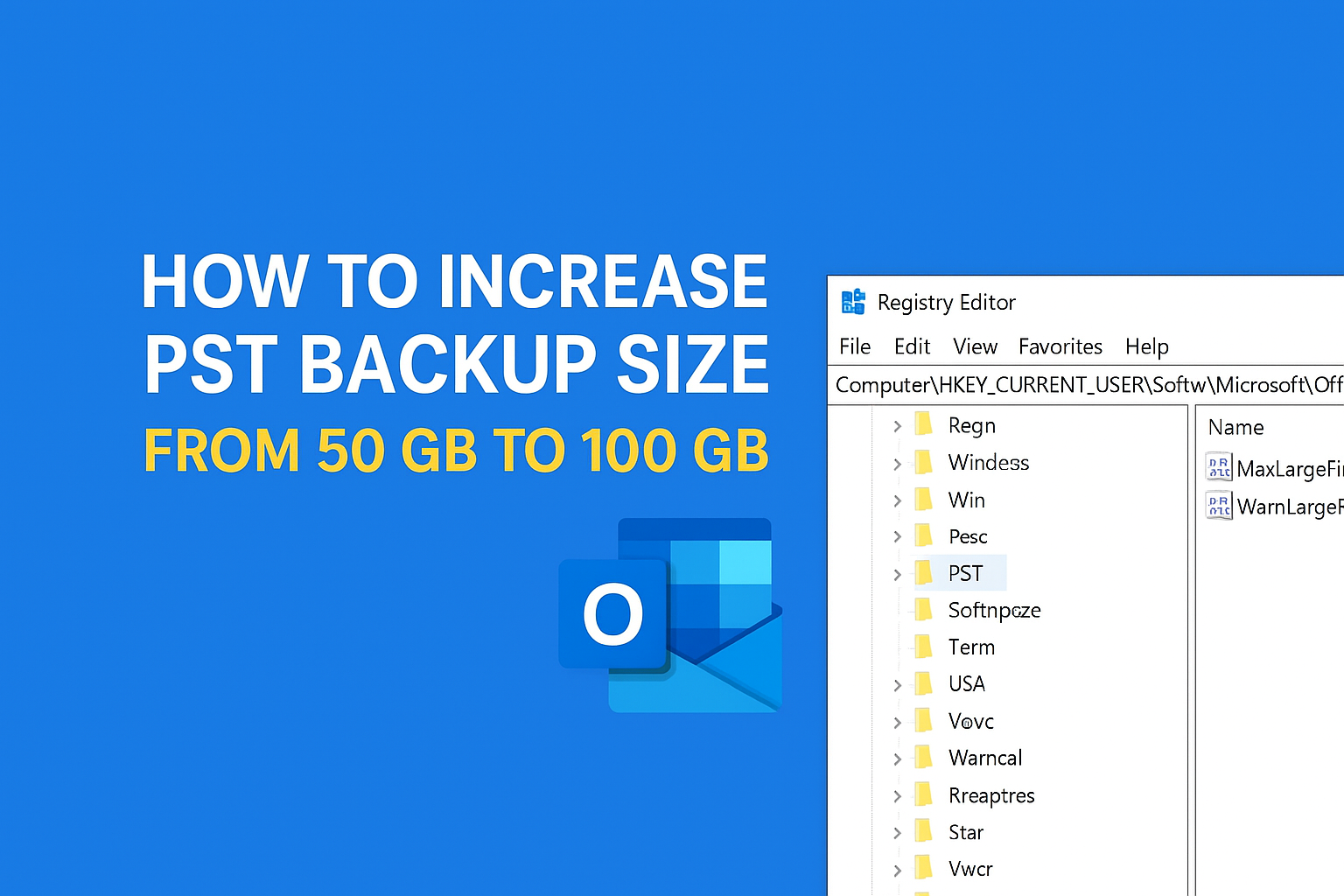
If you use Microsoft Outlook for email archiving or backup, you may have noticed that your PST file (Personal Storage Table) is limited to 50 GB by default. Once the file reaches that size, Outlook can start to slow down, show error messages, or refuse to save new items.
The good news is — you can safely increase the PST size limit up to 100 GB (or more) by making a simple change in the Windows Registry.
Important: This process involves editing the Windows Registry. If done incorrectly, it can cause system issues. Please back up your registry before making any changes.
Prerequisites
Windows 10/11 (or compatible versions)
Microsoft Outlook 2016, 2019, or Microsoft 365
Administrator access on your PC
Basic understanding of the Windows Registry Editor
Step 1: Open Registry Editor
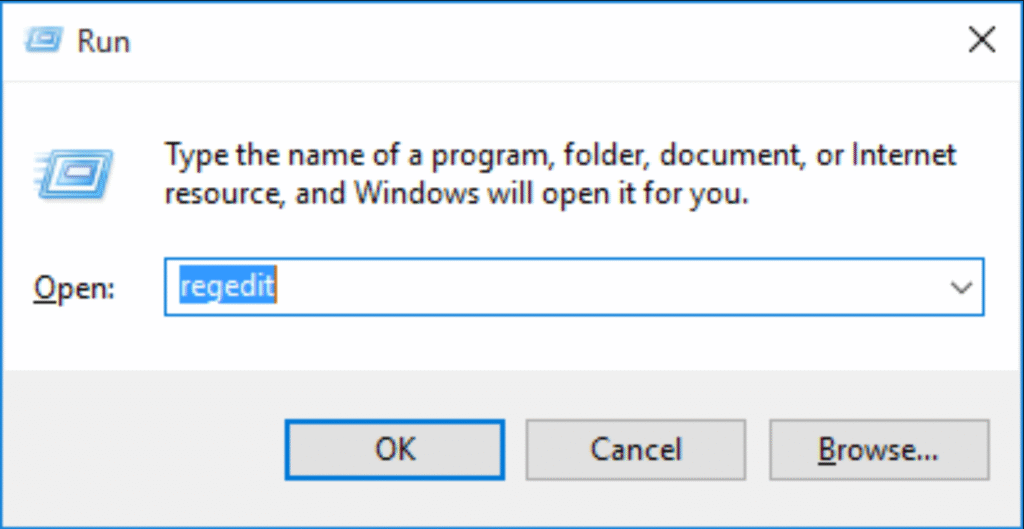
Press
Win + Ron your keyboard.Type
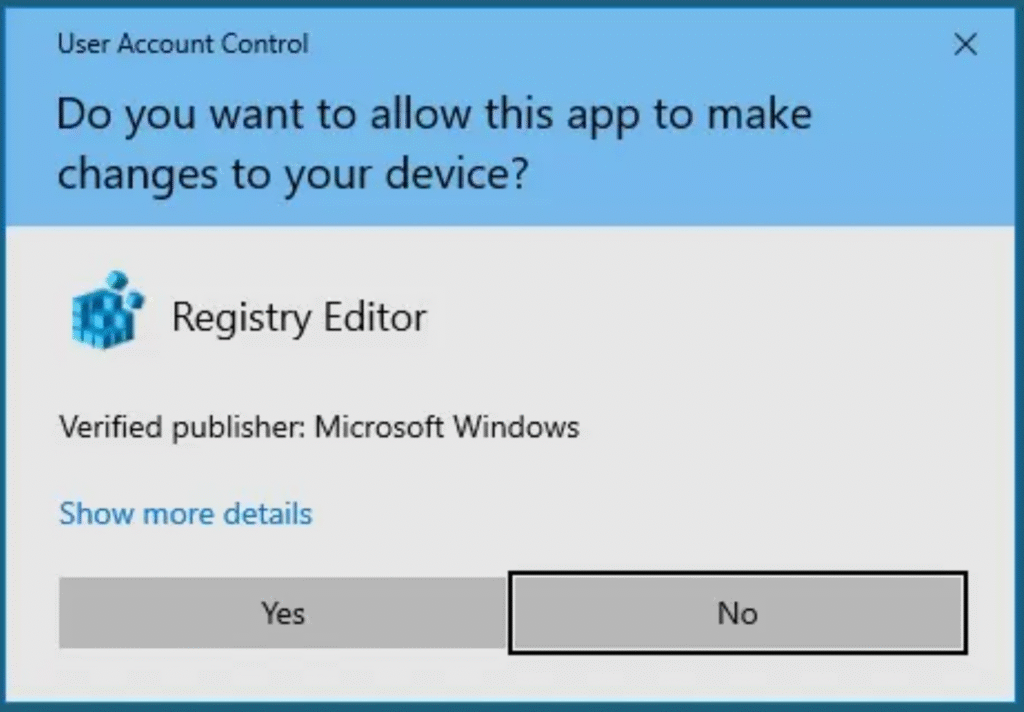
regeditand press Enter.If prompted by UAC (User Account Control), click Yes to allow changes.
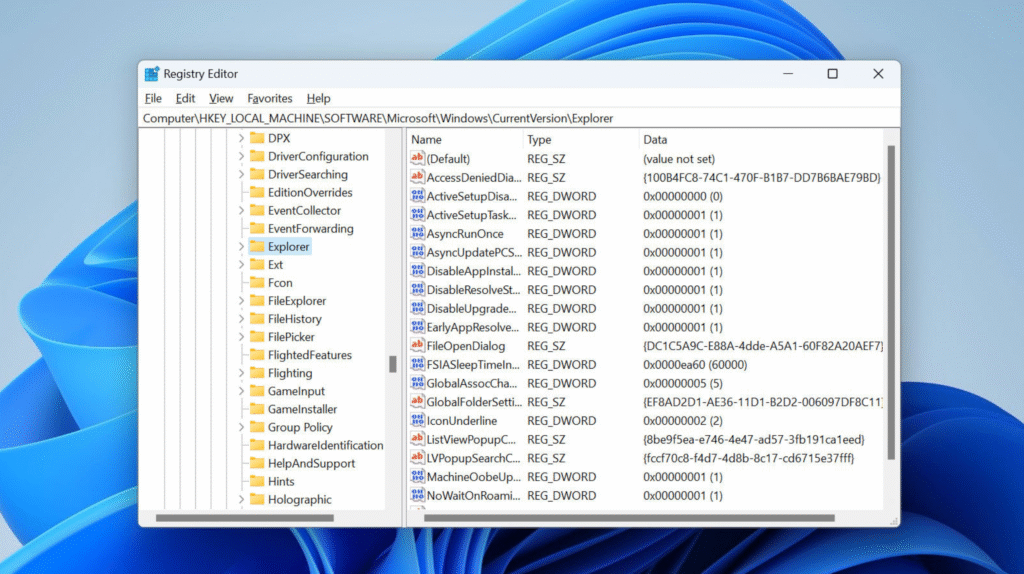
Step 2: Navigate to the PST Registry Key
For Outlook 2016, 2019, and Microsoft 365:
HKEY_CURRENT_USER\Software\Microsoft\Office\16.0\Outlook\PST
If you’re using an older version of Outlook, replace “16.0” with your version number:
Outlook 2013 →
15.0Outlook 2010 →
14.0
Step 3: Create or Edit the Values
In the right pane:
Right-click and choose New → DWORD (32-bit) Value.
Name it:
MaxLargeFileSize→ Maximum PST/OST file size limitWarnLargeFileSize→ Warning threshold before reaching the limit
Double-click
MaxLargeFileSizeand set:Base: Decimal
Value:
102400(100 GB = 100 × 1024 MB)
Double-click
WarnLargeFileSizeand set:Base: Decimal
Value:
95000(95 GB — gives you a buffer before the limit)
Tip: You can increase beyond 100 GB, but keep in mind that extremely large PST files can degrade Outlook performance.
Step 4: Restart Outlook
Once you’ve made the registry changes:
- Close Outlook completely.
- Restart your computer or simply reopen Outlook.
Your PST file size limit is now increased to 100 GB.
Optional: Verify the Change
Right-click on your PST file in Outlook.
Go to Data File Properties → Advanced → File Name.
Check the current file size — Outlook will now allow growth beyond 50 GB
Increasing the PST size limit is a quick and effective way to avoid “PST full” errors in Outlook. However, for long-term performance, it’s best to manage multiple smaller PST files rather than a single massive one.
If you’re part of an organization, check with your IT department before modifying system settings.
Summary of Key Values:
| Setting | Name | Type | Decimal Value | Size |
|---|---|---|---|---|
| Max PST Size | MaxLargeFileSize | DWORD (32-bit) | 102400 | 100 GB |
| Warning Threshold | WarnLargeFileSize | DWORD (32-bit) | 95000 | 95 GB |