
If you work with Tableau and Python, the pantab package is a powerful tool for creating and reading Tableau .hyper files. However, many users run into errors when installing pantab, especially when using new Python versions.
This guide shows how to correctly use Command Prompt (CMD) to set up Python and install pantab the right way.
Why pantab Fails on New Python Versions
pantab depends on native libraries like Apache Arrow, which often lag behind the latest Python releases.
- ❌ Python 3.14 → not supported
- ⚠️ Python 3.12 → may fail
- ✅ Python 3.10 / 3.11 → recommended
- I am using Python 3.8 and its working.
If you try to install pantab on an unsupported version, pip install pantab will fail with build or runtime errors.
Why Use CMD for Python Environments?
Using CMD allows you to:
- Control Python versions precisely
- Create isolated environments
- Avoid breaking your system Python
- Fix compatibility issues cleanly
This is the safest and most professional setup.
Step 1: Check Installed Python Versions
Open Command Prompt and run:
py --list
Example output:
-3.11
-3.14
If you don’t see 3.10 or 3.11, you need to install one.
Step 2: Install a Compatible Python Version
Install Python 3.11 using the Python launcher:
py install 3.11
Verify:
py --list
Step 3: Create a Virtual Environment (CMD)
Create an environment using Python 3.11:
py -3.11 -m venv tableau_env
Activate it:
tableau_env\Scripts\activate
You should now see:
(tableau_env)
Check Python version:
python --version
Step 4: Install pantab
With the environment activated:
pip install pantab
If this runs without errors, pantab is installed correctly.
Step 5: Test the Installation
Run Python:
python
Then test:
import pantab
print(pantab.__version__)
No error = success 🎉
Optional: Use pantab with Spyder
If you use Spyder:
pip install spyder
spyder
Spyder will now run inside the same environment that has pantab.
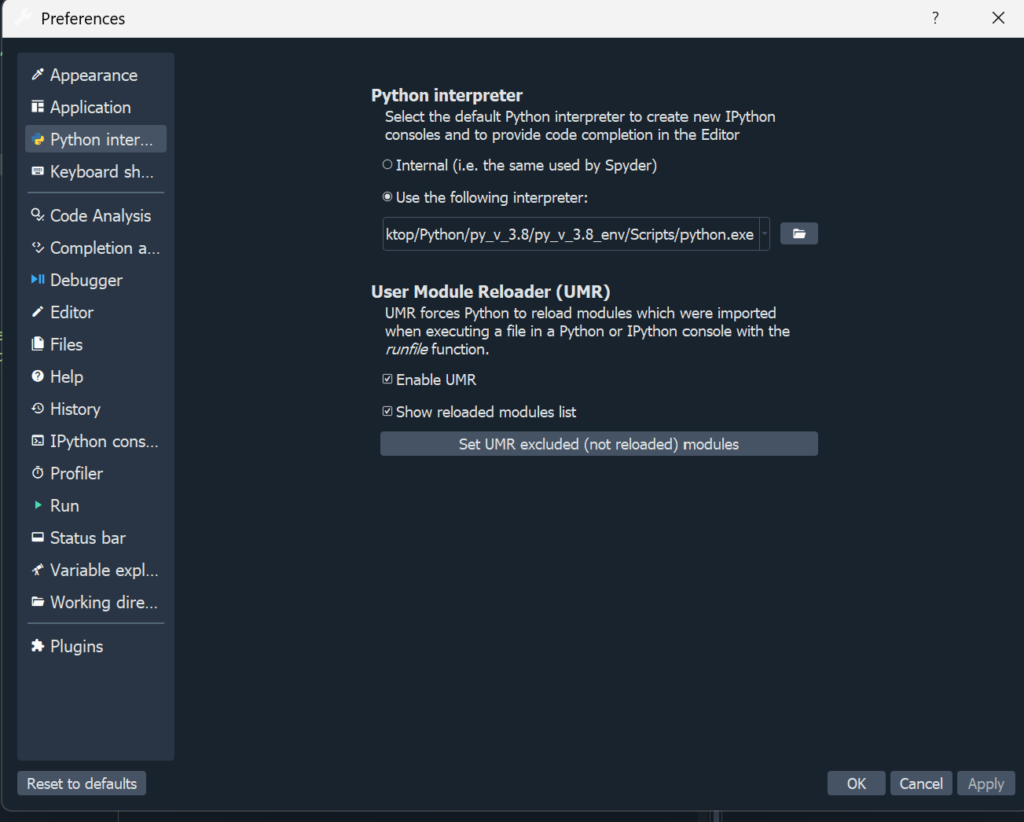
I also update the Preferences tab within spyder so that it always opens with expected interpreter.
Common Errors and Fixes
Error: No runtime installed that matches 3.8
This means Python 3.8 is not installed.
Fix:
py install 3.8
Or better:
py install 3.11
Error: ModuleNotFoundError: pantab
This means:
pantabwas installed in a different environment- Or the environment is not activated
Fix:
tableau_env\Scripts\activate
pip install pantab
Best Practice Summary
| Task | Recommendation |
|---|---|
| Python version | 3.10 or 3.11 |
| Environment | Virtual env (venv) |
| Tool | CMD |
| System Python | Do not downgrade |
| Stability | Prefer compatibility over latest version |
Conclusion
Using CMD with virtual environments is the safest and most reliable way to work with pantab. Instead of downgrading your entire Python installation, you create a clean, compatible environment that just works.
If you use Tableau and Python regularly, this setup will save you hours of debugging and frustration.